Move the SSMS Status Bar to the Top: A Small Change That Can Prevent a Big Production Mistake!
I have a strange preference. I keep my Windows taskbar at the top of the screen, and I have been doing so for years. Anything requiring attention shall be positioned at the TOP.
This isn’t about aesthetics.
When you administer Development, UAT, Pre-Production, and Production databases throughout the day, the SQL syntax doesn’t change. The query window doesn’t change. Sometimes, even the database names don’t change.
The consequences change.
DROP, DELETE, UPDATE, or even an innocent-looking troubleshooting query might be perfectly acceptable in Development and disastrous in Production.
So I want Production to look different before I even read the server name.
Red at the top means: Stop. Look. Verify. Execute.
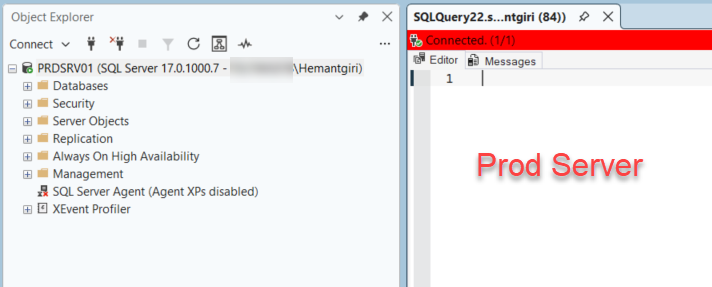
Recently, while standardizing on a single version of SQL Server Management Studio for Production, UAT, Pre-Production, and Development, I decided to bring back another habit: color-coded SSMS connections.
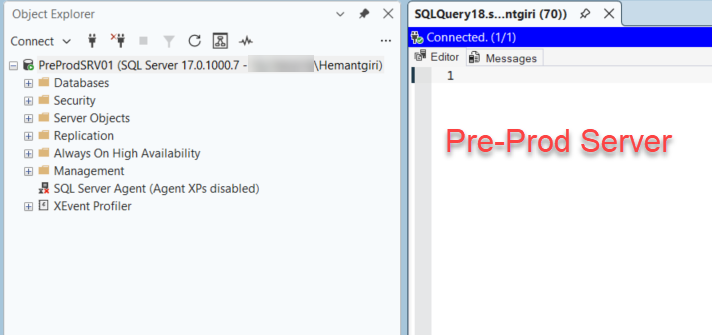
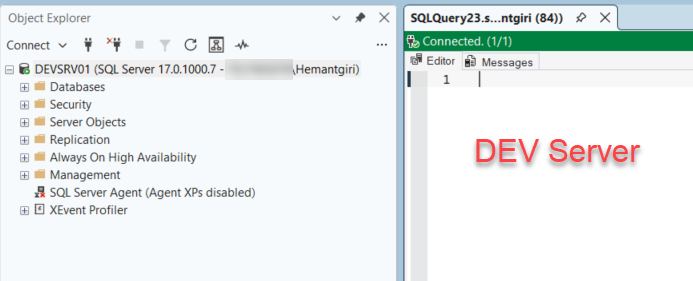
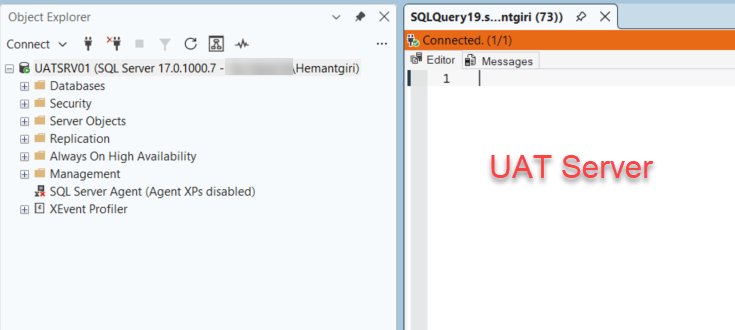
Production gets red. Pre-Production gets blue. UAT gets Orange. Development gets green.
But then something bothered me.
The most important piece of information in my query window, which SQL Server am I connected to?, was sitting all the way at the bottom of the screen.
My immediate thought was:
Why not put it at the top, where I naturally look while writing SQL?
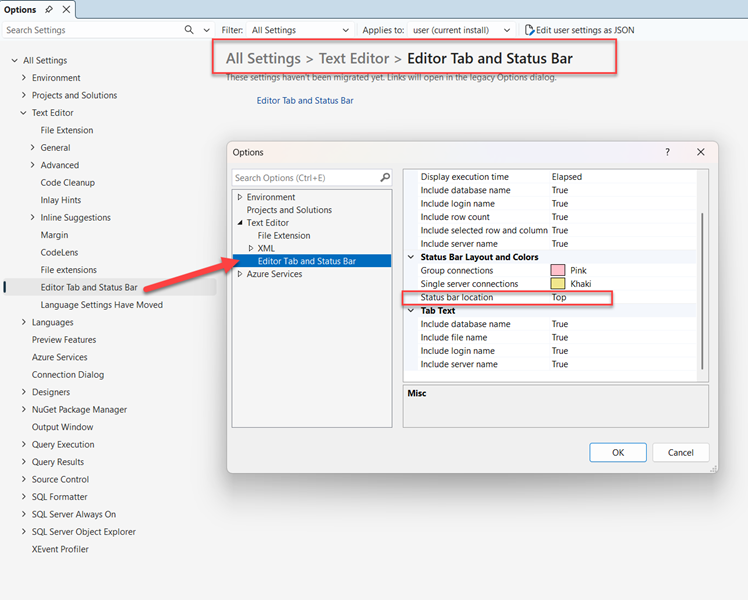
It turns out, SSMS can do exactly that.
How to move the SSMS Status Bar to the Top and color-code SQL Server Connections
- Go to Tools Menu
- Select Options
- Text Editor
- Editor Tab and Status Bar
- Status Bar Location -> Top